 AI Essay
On this page
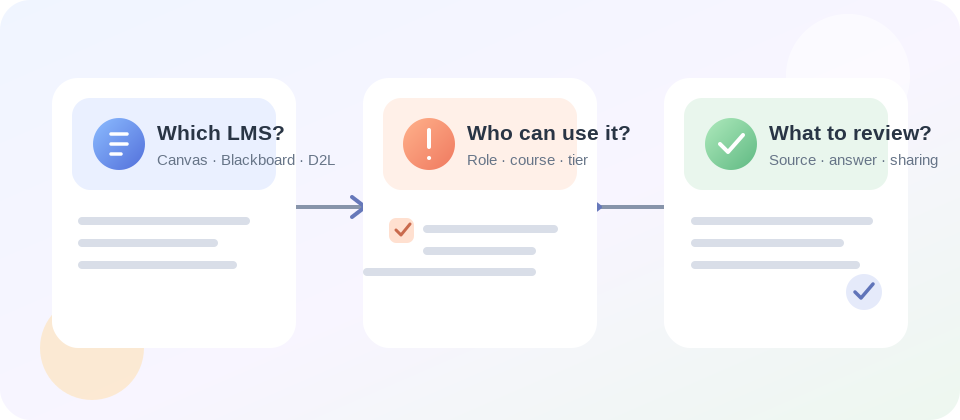
Compare the documented LMS features
| Platform | Student-facing uses | Instructor-facing uses | Access to confirm |
|---|---|---|---|
| Canvas IgniteAI | Study Tools can make summaries, practice quizzes and flashcards from course pages and files; course search and translations are also listed in Canvas feature documentation. | Question authoring, accessibility remediation, discussion summaries and translations are listed in Canvas Core. Rubrics, grading assistance and discussion insights are listed in Plus; an agent, Ask Your Data and Study Tools are listed in Next. | Canvas tier, feature option, account and course settings. Study Tools require Canvas Next in current guidance and an administrator must enable the feature. |
| D2L Lumi for Brightspace | Study Support and content summaries are among the documented suite capabilities. The specific route depends on what an institution has purchased and enabled. | Lumi can support quiz questions, assignment and discussion ideas, outcome alignment, content generation, insights and remixing. | Whether the organization purchased Lumi Pro, enabled Generative AI, configured the course offering and granted the right role permissions. |
| Blackboard AI Design Assistant | The cited Design Assistant guide focuses on instructor course creation, rather than a student study assistant. | Course structures, assignments, test questions and question banks, discussions, journals, rubrics and generated images are among documented functions. | Whether an administrator activated the relevant functions and assigned privileges to the instructor role. |
These suites are built into institutional learning platforms rather than offered as identical, self-serve study apps. The table summarizes features described in current provider documentation. A feature listed for a platform may still be unavailable in a particular institution, account tier, course or role.
Canvas now groups features into Core, Plus and Next tiers. Brightspace describes D2L Lumi Pro as an add-on suite. Blackboard documents its AI Design Assistant as instructor-facing course creation support. These commercial and administrative arrangements differ, so compare the actual feature in your own LMS rather than treating the product names as interchangeable plans.
Check whether your course actually has the feature
First identify the platform and course you are using. A university may use more than one LMS, and two courses in the same LMS can have different settings. Then check your role: an instructor’s course-authoring tools do not automatically appear in a student view.
In Canvas, the current student instructions say IgniteAI Study Tools are included with Canvas Next. The instructor guide says an account administrator must turn on the feature option before instructors can enable it for a course. It also notes a 15,000-word input limit for its stated accuracy guidance. If the button is missing, that can mean the feature is not enabled in the course; it does not mean the student followed an incorrect setup path.
For D2L Lumi Pro, ask whether Generative AI is enabled in the organization, whether it is configured for the course offering and whether your role has permission. Blackboard’s administrator guidance likewise says AI Design Assistant is opt-in and that administrators assign the relevant privileges. Ask the course team or LMS help desk which exact feature, course and role are covered before signing up for an outside service.
Review course-grounded output against the original material
A feature that uses course context can still omit a qualification, misstate a definition or produce an answer that is not supported by the assigned reading. Open the original page, file, rubric or discussion before relying on a generated summary or question. Check that the claim appears in the material, that the question has a defensible answer and that the explanation does not add an unprovided fact.
For a study quiz, answer the question before viewing its explanation, then locate the relevant passage yourself. For a generated rubric or question bank, check alignment with the learning outcome and assignment before publishing. Blackboard explicitly asks instructors to review generated content and notes the risk of inaccurate output. Instructure provides AI Nutrition Facts for capabilities, data handling and limitations. A provider’s transparency page is useful context, not independent confirmation that one output is accurate.
Canvas Study Tools documentation recommends not using the feature on course pages beyond its stated word limit because output may be less accurate. D2L’s administrator guide recommends submitting content in English, Spanish, French, Portuguese or Dutch; for other input languages, it says Lumi Pro defaults to English output. This is suite-level guidance, so confirm how the specific feature handles your course language before assigning or sharing its result. Check current product documentation for the exact capability you plan to use; do not generalize a constraint from one tool to the whole LMS.
Check data handling and course rules before entering material
Institution-managed access may provide controls a personal account does not, but the LMS logo alone does not establish what information is sent to a model, where it is processed or who can view a saved result. Read the product-specific AI transparency information and your institution’s privacy and AI-use guidance. Do not enter identifiable student information, unpublished research or restricted course material unless the institution has approved that use.
Blackboard’s administrator disclosure identifies Microsoft Azure OpenAI as its provider for the described Design Assistant, notes possible service locations and says client course data and outputs are stored in the existing Blackboard LMS database. It also says Microsoft may retain prompts and output for up to 30 days for content filtering. D2L’s FAQ describes its Lumi Pro model route and data-use terms. Instructure says its features have AI Nutrition Facts and are controlled by institutional opt-in. These are provider statements; review the current documentation and your organization’s contract rather than treating them as an audit of a specific deployment.
Follow the assignment’s rules even when an AI feature is built into the course platform. Institutional availability is not the same as permission to use a generated answer as submitted work. If the course requires disclosure, source attribution or an independently written response, keep those requirements visible.
Choose the LMS feature that matches the task
If you are a student, start with the task: retrieve an idea from a course page, practice recall, or translate a discussion. Use a feature only when your course has enabled it and the instructor’s rules permit it. A study summary is a starting note, not evidence that you can explain the reading unaided.
If you teach, choose the output you need before opening a generator: a course outline, question draft, rubric suggestion or accessibility repair. Provide only permitted context, review every generated item and retain the instructor’s responsibility for the final course material. Use a separate public tool only when it adds a capability the institution has approved and the LMS route cannot provide.
If the feature is missing or the tier is unclear, ask the LMS administrator for the product name, feature entitlement, course-level setting, role permission, data route and any usage limit. That short check prevents you from preparing a lesson around a button students cannot see or a capability the institution has not licensed.
Questions about this topic
Can every Canvas student use IgniteAI Study Tools?
No. Current Instructure guidance lists Study Tools with Canvas Next and says an account administrator must enable the feature. Instructors can also manage course-level access, so availability can differ by institution and course.
Is D2L Lumi Pro included with every Brightspace course?
D2L documents Lumi Pro as a suite with organization, course configuration and permissions requirements. Ask the administrator whether your institution has purchased and enabled the relevant capability.
Can students use Blackboard AI Design Assistant to study?
The cited Blackboard guide describes the Design Assistant as a tool for instructors creating and designing courses. It is not documented there as a student-facing study assistant.
Does an LMS-generated quiz prove I understand the material?
No. Treat generated questions as practice material. Check each answer against the assigned source, explain your reasoning and try a new question without relying on the generated explanation.
Are AI features inside an LMS automatically allowed for an assignment?
No. Course and assignment rules still apply. Confirm what forms of AI assistance are permitted and whether the instructor requires disclosure or original work.
Sources and editorial notes
The supporting reading below informs our editorial guidance. Exercises and scenarios illustrate a method; they do not report a completed product test or measured learning outcome. Read our editorial policy or send a correction with a supporting source to info@ai-essay.com.
- Instructure: Canvas Core, Plus and Next feature comparison
- Instructure Community: available AI features in Canvas
- Instructure Community: IgniteAI Study Tools for students
- Instructure Community: enable IgniteAI Study Tools as an instructor
- Instructure Community: Canvas feature option summary
- D2L Brightspace: D2L Lumi Pro feature overview
- D2L Brightspace: Lumi Pro permissions
- D2L Brightspace: Lumi FAQ on AI technology and data use
- Anthology Blackboard: AI Design Assistant for instructors
- Anthology Blackboard: AI Design Assistant transparency and administrator controls
- Instructure: EdTech Top 40 analysis of U.S. higher-education LTI use