 AI Essay
On this page
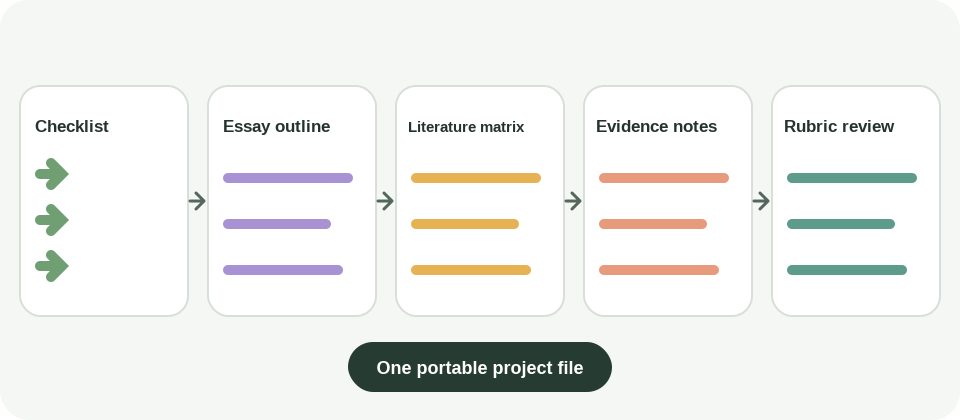
Build or reopen an assignment project file
Start from a checklist, outline, matrix, evidence workspace, rubric review or feedback action plan. Import a pre-use AI instruction comparison and, separately, an after-use AI assistance record. Link rubric criteria to revisions and carry a focused feedback goal into a named next task. You decide each review status; the page does not score your work.
Browser-based, local workflow. Files are processed here and are not uploaded. Saving is off by default; turn it on to keep a copy in this browser profile on this device. Records may contain draft excerpts, research notes, feedback and short course-instruction excerpts. Do not include full submissions, names, grades or confidential feedback unless your course permits it.
The device copy is limited to 450 KB and is restored in this browser when you return. Larger projects still work in the current tab; download the JSON pack to keep them. Browser settings or private browsing may remove local data.
Project contents
Review rubric criteria against the draft
Record a precise location, evidence and a next revision. Choose the status yourself; this tool does not grade or score the draft.
Paste criteria from a rubric
Paste up to 100 criteria, each under 500 characters. Existing criteria stay in the project.
Send complete items marked “Needs revision” to the checklist. The checklist tool previews the items; your current checklist changes only if you apply that preview.
Carry feedback into a next task
Group brief examples under a focus you identify yourself. Keep one to three active goals for a task. Record an interpretation or a question, then choose one action and a check for the next task. Your status and follow-up are your own notes, not an assessment.
An updated stage is ready to return
Review the returned packet. Applying it replaces only that stage in this pack; the other stages stay as they were.
Add a stage packet or open an existing project file.
How an assignment project pack works
The project pack combines separate JSON records from the assignment checklist, essay outline, literature matrix and evidence workspace. It includes a rubric-to-draft review where you connect a criterion to a draft location, supporting evidence and a next revision; complete revision actions can be sent into the checklist. It can also hold two distinct AI records: a pre-use instruction comparison and a post-use activity log. The comparison records an intended action, short instruction excerpts and your reading. The activity log records assistance that actually happened, how it affected your work and checks you performed. Neither record decides whether an action was permitted.
Choose a blank planning stage to begin, add a missing planning stage later, or import existing JSON records. The rubric review is edited directly in the project pack; its status is your own judgment, not an automatic grade. Create the pre-use record in the assignment checker or the post-use record in the AI assistance log, then import either JSON file here as its own stage. The pack validates the records and lets you download them for later editing. It reads packets in this browser, shows a summary and lets you download one project file. When you open a supported planning stage in its original tool, a temporary handoff in the same browser tab lets you return the edited packet here. Review the returned stage before replacing it; other stages remain unchanged.
Keep a task-specific AI instruction record with the project
The University of Glasgow’s 2026 assessment guidance distinguishes supervised work from take-home and other independent assessments, and describes assessment-specific conditions students should know before they begin. That is Glasgow’s own framework, not a rule for every university. Loughborough separately tells its students to check each brief and preserve developmental work to demonstrate process if requested. These examples show why a useful record should point back to the actual task instructions rather than save a universal “AI allowed” answer.
Use the assignment checker to record the action you are considering, short excerpts and locations from the course and assignment instructions, your own reading of how they fit together, the documentation status you found and the next step you chose. Download that JSON record and import it into this project. The saved stage is a snapshot; to update it, download the stage JSON from the pack, open it in the assignment checker, revise the entries, create a fresh comparison note and import the new record. Keep excerpts short and store the file only where permitted.
This stage records a person’s reading of selected instructions. It does not interpret a policy, grant permission, prove what a student later did or preserve an instructor’s reply. The separate AI assistance record is for activities that actually happened. Do not treat a complete project pack as proof that AI use was allowed or that assessment requirements were met.
Keep actual AI assistance separate from the pre-use note
A pre-use note describes the action you are considering; an activity record describes what happened. Monash advises students to track what they asked an AI tool to do and how they used its response. Loughborough’s guidance asks students to describe prompts and adaptations and retain developmental work. These are institution-specific expectations, not universal requirements; check the actual assessment brief and local policy.
After using a tool, record only details you can support: the product or feature, date if known, task and request, what you retained or changed, checks actually performed and where supporting records are kept. The AI assistance log can export these fields as an editable JSON record and reopen a downloaded project record. Import it here as a separate post-use stage, distinct from the instruction comparison. Do not paste a confidential full prompt or output into a portable file unless your course permits it.
The activity record can help you draft an acknowledgement, but it does not decide what your course requires, prove that an AI output is accurate or replace source citations. Review any draft against the exact assessment format before submitting it.
Connect each rubric criterion to a specific revision decision
For each criterion, record the exact draft heading, paragraph or page, then quote only the passage you need to review. Add the source or evidence that supports it, decide whether the criterion is met or needs revision, and write one next action. A concrete location makes it easier to return to the right passage after editing.
This is a self-review record, not a scoring engine. It does not calculate a grade, decide how much a criterion is worth or verify that a cited source supports the passage. Keep the original rubric beside the project file and apply the instructor’s wording and weighting. If a criterion is ambiguous, ask for clarification rather than inventing a requirement.
Turn feedback into one observable next-task action
The rubric review above is for revising the current draft. A separate feedback action plan helps you carry a useful lesson from completed work into a later task. The University of Melbourne recommends looking for repeated comments, comparing them with task criteria and your own work, and choosing a focused action. Monash describes feedback as a cycle of understanding, reflection and application. These are learning guides, not a promise that one plan will improve a mark.
Create a goal for a pattern you have noticed, then add brief feedback examples with the earlier task, source and criterion or location. Include what is already working as well as what you want to change. Write your own interpretation; if the comment is unclear or you disagree, leave a question for your instructor instead of treating the comment as automatically correct. Choose one action for a named next task and an observable sign you can check in your own work. After that task, record what you actually noticed.
Keep one to three active goals for a task so the plan remains manageable. The status is your own record, not an evaluation by this tool. Do not paste a full submission, names, grades, confidential comments or other identifying details unless your course permits them. This local plan does not upload feedback, decide which comment is correct or verify that you applied an action.
Keep project data under your control
Files are processed in this browser and are not uploaded. On-device saving is off by default. If you turn it on, this browser stores a copy up to 450 KB and restores it when you return; browser settings or private browsing may remove it. Larger packs still work in the current tab, but need a downloaded JSON file for a reliable backup. AI records can contain course excerpts, activity summaries and your interpretation, so keep only relevant wording and store the project where permitted. Anyone with access to this browser profile or downloaded file may be able to read the records.
Opening a project pack here does not change the checklist, outline, literature matrix or evidence workspace. Checklist, outline, matrix and evidence records reach their original tool only after you choose Continue; rubric revision actions reach the checklist only after you open and apply its preview. The rubric review stays in this project. Temporary handoffs and stage returns expire after 30 minutes and are not uploaded. Review imported text and source records yourself; packaging does not check accuracy, source quality or assignment completion.
Questions about this topic
Which files can I combine?
Start with a blank checklist, outline, literature matrix, evidence workspace, rubric-to-draft review or feedback action plan, or import the checklist JSON export, structured outline JSON export, literature matrix JSON packet, evidence workspace JSON packet, rubric review packet, feedback action plan, pre-use AI instruction comparison or post-use AI assistance activity record. CSV and plain-text outline downloads are not project stage packets.
Does the AI-use record establish permission?
No. It preserves your selected action, excerpts, reading of the wording and chosen next step. It does not interpret a policy, determine which instruction takes precedence, preserve an instructor reply or record what you actually did afterward. Follow your current course and assignment requirements and keep after-use activity records separately.
Can I edit the AI-use record inside the project pack?
The stage is a validated snapshot, not an editor. Download the AI-use stage JSON from the pack, open it in the assignment checker, revise the fields, create a fresh instruction-comparison note, download a new JSON record and import it into the project pack. The new file replaces only the AI-use stage when you choose it; the other stages stay in the preview.
Can I edit the after-use AI assistance record in the project pack?
The after-use stage is a snapshot, separate from the pre-use instruction comparison. Download its JSON, open the AI assistance record, edit the entries, download a new project record and import it into the pack. The activity log validates the file and keeps the current entries if the import fails.
Does the after-use activity record prove I followed the assignment rules?
No. It preserves details you entered about assistance that actually happened. It does not determine whether the activity was permitted, confirm that your notes are complete or replace citations, saved outputs or other records your assessment requires.
Can I send rubric revisions to the checklist?
Yes. Mark a criterion Needs revision and give it a next action, then choose Send revision actions to checklist. Complete actions are added to the checklist packet with the rubric criterion ID, location and wording. Existing checklist items stay in place; incomplete rows and actions already transferred are skipped. The checklist tool previews the packet and asks you to apply it, then you can return the edited checklist to this project pack.
How do I carry feedback into my next assignment?
Add a feedback action plan and combine brief examples you have personally noticed into a focus. Record the earlier task and feedback source, your interpretation or a question to clarify, one action for a named next task and an observable check. After that task, record what you saw in your work. The tool does not assess the feedback or verify the result.
Can I return an edited stage to a saved pack?
Yes. Continue a checklist, outline, literature matrix or evidence stage in the same browser tab, review and apply the project data in that tool, then choose Prepare return to project pack. The pack shows a preview before you apply it. Applying replaces only that stage and keeps the others. The temporary return expires after 30 minutes; JSON download and import remain available as a fallback.
Can I save the project on this device?
Yes, optionally. Saving is off by default. Turn it on to store a copy up to 450 KB in this browser profile on this device; it can be restored when you return. Larger packs need a downloaded JSON backup. Turning saving off removes the local copy.
Does the project file sync between devices?
No. The optional saved copy stays in this browser profile on this device and is not uploaded or synced. Download the pack and move it yourself if you need it elsewhere.
Does a complete pack mean my assignment is finished?
No. It only means those stage records are present in the file. It does not assess the argument, verify evidence or mark checklist requirements complete.
Sources and editorial notes
The supporting reading below informs our editorial guidance. Exercises and scenarios illustrate a method; they do not report a completed product test or measured learning outcome. Read our editorial policy or send a correction with a supporting source to info@ai-essay.com.
- University of Glasgow: Generative AI assessment scenarios
- Loughborough University: Referencing generative AI in assessed work
- MDN Web Docs: File API
- MDN Web Docs: Blob
- Monash University: AI and assessments
- Loughborough University: Acknowledging, describing and referencing GenAI
- Monash University: Learn from feedback
- University of Melbourne: Using assessment feedback