 AI Essay
On this page
Free browser tool
Create a worksheet and reuse questions
Enter questions you have written, keep marking notes in the teacher key and optionally build a reusable local bank.
The current worksheet stays in this tab. The separate question bank is saved only when you turn on device saving. Nothing is uploaded.
Questions
Expected answers and marking notes appear only in the teacher key.
Your local question bank
Save completed worksheet questions for reuse, or import a backup. The bank is separate from the current worksheet.
Nothing is uploaded. Saving stays off until you enable it. Turning it off removes the saved copy from this browser; download JSON first if you want a backup.
No questions saved in this bank yet.
Student copy
Teacher answer key
Build a worksheet from questions you have reviewed
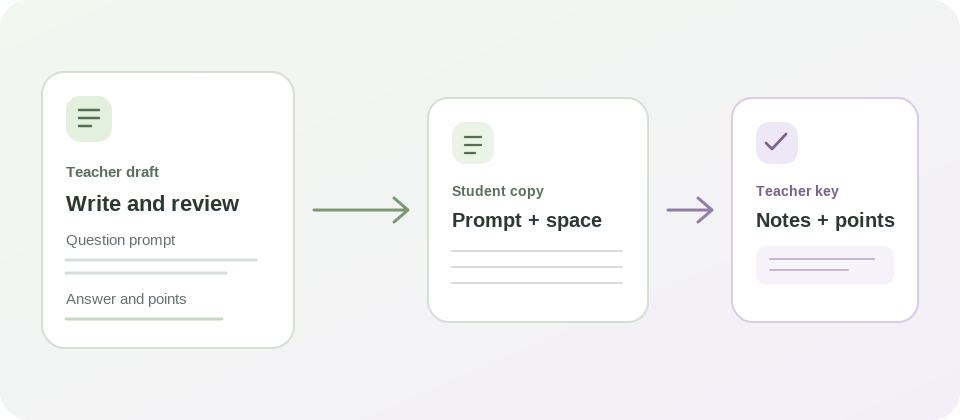
Add a title, optional course details, a learning outcome, student instructions and up to 20 questions. For each question, write the prompt learners will see and put the expected answer or marking notes in the teacher-only field. Add a point value if you use one. The preview updates as you type, and each print button includes only its own version.
Everything runs in this browser tab. The current worksheet is not saved automatically. If you want to reuse questions later, add them to the separate question bank and explicitly turn on saving on this device. That bank stays in this browser’s local storage; export a JSON backup before clearing browser data or moving to another device. Print to paper or choose Save as PDF in your browser’s print dialog.
Reuse reviewed questions from a local bank
Save completed prompts to the bank when you are ready to reuse them. The saved item can retain its question format, answer or marking note, point value, course, learning outcome, source note and your own reviewed flag. Search the bank, select items and add them to the current worksheet. When you reuse and edit a saved item, save the worksheet questions again to update that same item. Matching prompt text from an import is skipped so a second copy is not added silently.
Question banks are useful only when their items remain tied to the course outcomes and evidence they were written to assess. Cornell’s guidance recommends starting from learning outcomes and choosing questions that fit the intended thinking. The bank stores your editorial record; it does not verify the source, answer, alignment, fairness or suitability. Recheck each item when the course or source changes.
Start with the learning outcome and the task
Begin by naming what students should be able to do. Then choose question formats that give them a fair way to demonstrate that outcome. Carnegie Mellon’s teaching guidance notes that question type should fit the objective: a multiple-choice item can check recognition, while an explanation prompt is needed when learners must articulate or justify reasoning. This builder accepts teacher-written prompts rather than choosing a format or outcome for you.
Write instructions that state what learners should do, how much work to show and any allowed materials. If points matter, decide how partial credit will work before assigning a total. Ask a colleague to read the student copy for ambiguity, and check every answer or marking note against the source material you intend to teach.
Keep student prompts separate from teacher notes
The student copy contains the worksheet title, course details, learning outcome, instructions, question prompts and blank response space. The answer key contains the same question prompts alongside the expected answers or marking notes and any point values. If you edit a prompt after writing its answer, update the key yourself; the tool does not check that the two still agree.
A printable layout does not establish that an activity is accessible, aligned to a curriculum standard or suitable for every learner. Use plain instructions, adequate answer space, readable contrast and a format that works with your school’s accommodations. Check institution rules before adding copyrighted readings, student information or restricted assessment content.
Check the content and print output before use
This is a local formatting and question-reuse tool, not an AI worksheet generator, learning-management system or assessment validator. It does not create questions from a topic, grade responses, confirm factual accuracy, preserve the current worksheet after you leave the page or send a worksheet to students. Only bank items are saved, and only after you enable saving. Supply and review your own content, and keep an exported backup of anything you need after the tab closes.
For a graded assessment, compare the final student copy with the assignment brief and course policies. Verify each key, point value, expected response and source location independently. Use the print dialog’s page preview to make sure no question is split awkwardly and the answer key is not included with the student handout.
Questions about this topic
Does this worksheet maker generate questions with AI?
No. You write and review the questions and teacher notes yourself. The tool formats them into a student copy and a separate answer key in your browser.
Can I print only the student worksheet?
Yes. Use Print student copy to open the browser print dialog with the teacher key excluded. Print teacher answer key opens the key by itself. Inspect the preview before sharing.
Are my questions uploaded or saved?
No questions are uploaded. The current worksheet stays in the tab and is not saved automatically. The separate question bank is stored in this browser only after you turn on Save bank on this device. Turn it off to remove that local copy, or export JSON to back it up.
Does the answer key prove that each answer is correct?
No. The key contains only the answers and marking notes you entered. Check them against the course material and update the key whenever you revise a question.
How many questions can I add?
The builder supports up to 20 questions in one worksheet. You can use fewer; blank question prompts are omitted from the preview.
Does the question bank check if an answer is correct?
No. The bank keeps the answer or marking note you entered and your own reviewed flag. Check every prompt, answer, source and learning outcome yourself before reusing or printing an item.
Sources and editorial notes
The supporting reading below informs our editorial guidance. Exercises and scenarios illustrate a method; they do not report a completed product test or measured learning outcome. Read our editorial policy or send a correction with a supporting source to info@ai-essay.com.